Getting started with SquadCars.
Carpooling works best with the parents you already trust. Here's how to get your squad set up in a few minutes, and finally retire the "who's driving?" chat.
Sign up and create your family
Get your account set up in under a minute
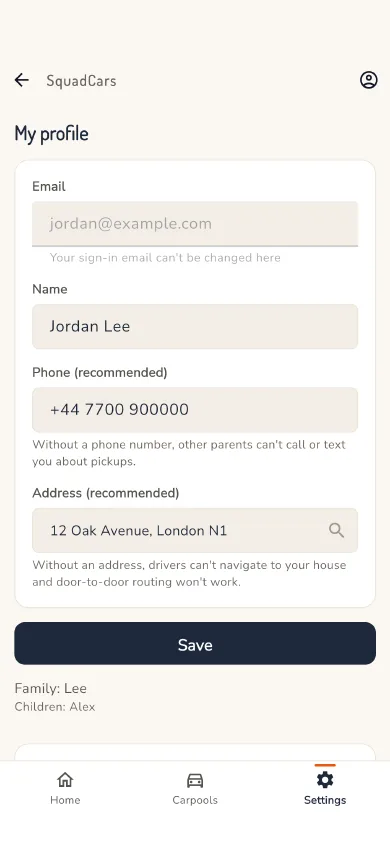
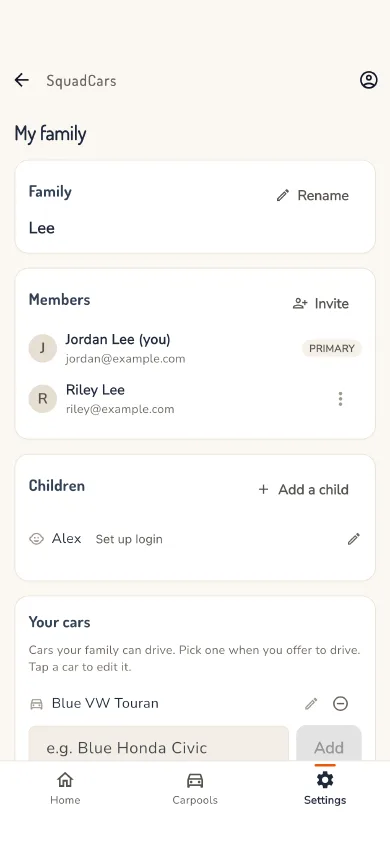
Your family is the unit that drives and travels together: parents, guardians and kids in one bundle. Setting it up is what lets other parents in your carpools book lifts with you (and you with them).
Tap Sign up and sign in with Google, Apple or your email address. No passwords to remember: we send you a one-time code.
Give us your name and your children's names, and you are ready to go. SquadCars asks for your phone number and home address later, when a lift needs them, so other parents can reach you and find you for pickups. If your partner also drives, invite them to join your family so either of you can offer the car.
Old enough to check their own lift? Tap Set up login next to your child on the Family screen and they scan the QR code (or type the code) on their own device. They get a read-only view of who is picking them up and when.
Join your team's carpool
Connect with your sports team in one tap
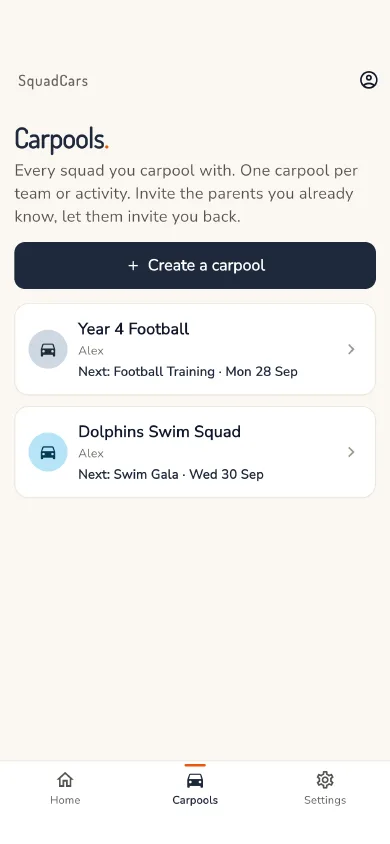
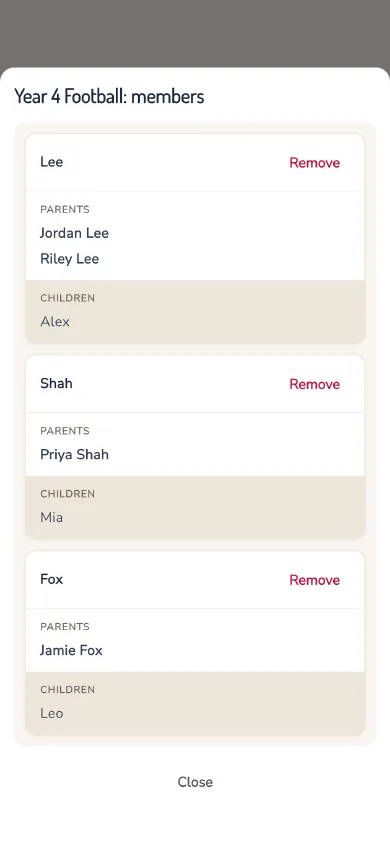
A carpool is just the squad of parents that share lifts for one team or activity. It's private: only people who've been invited can see events or book seats.
Another parent will share an invite link or QR code. Open it, sign in if you need to, and tap Join carpool. You're in straight away.
Assign which children play in this team. If your kids play for multiple teams, join multiple carpools, and each one is independent.
Create events
Training sessions, matches, tournaments
Any member can create events. Set the name, date, time, location and direction (Round trip, To event or From event).
For weekly training, create a recurring event: it generates individual events for each week that can be edited independently.
Offer to drive
Let other parents know you can take kids
Carpooling works when more than one parent puts a car forward. If you can take a few kids one week, offer your car, and another parent will do the same the next week.
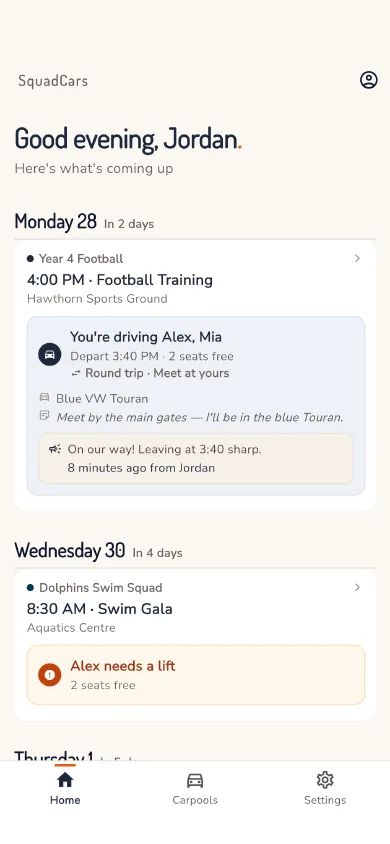
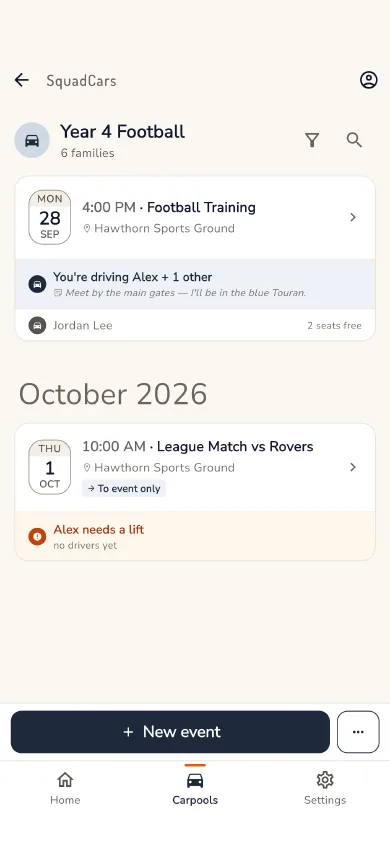
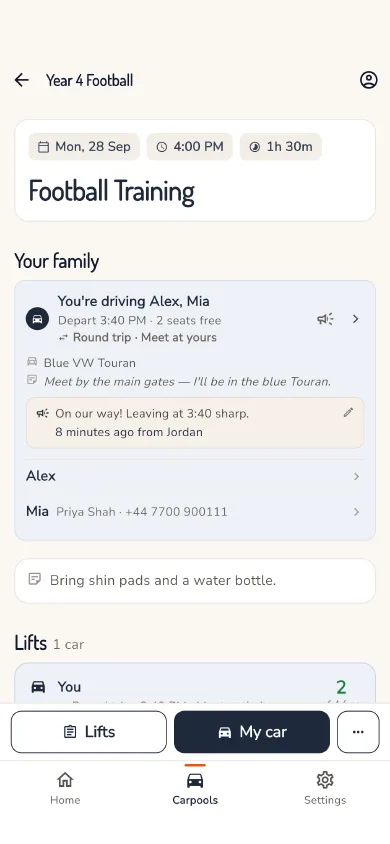
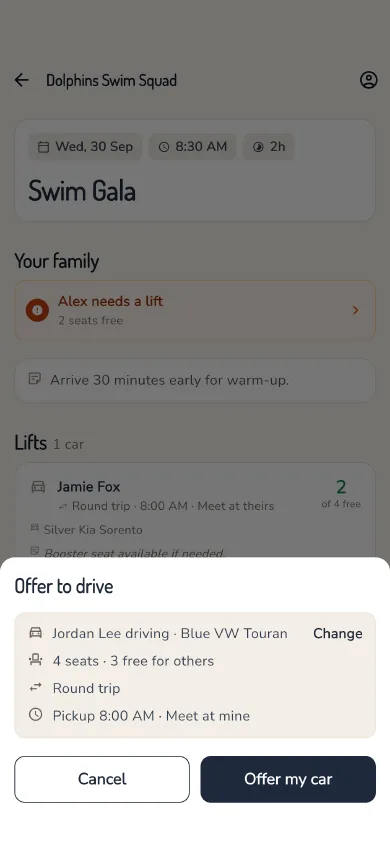
Open an event and tap "Drive". Your usual details are already filled in: your car, available seats, pickup time, and whether you'll pick up at your address or door-to-door. If they look right, tap "Offer car". Tap the summary to change anything, or to choose which parent is driving.
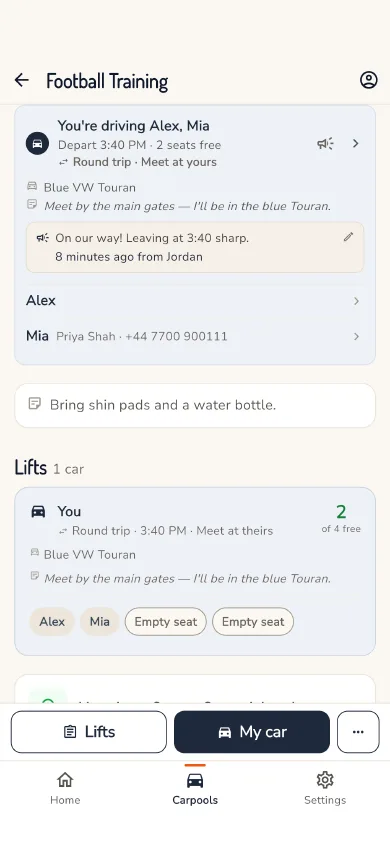
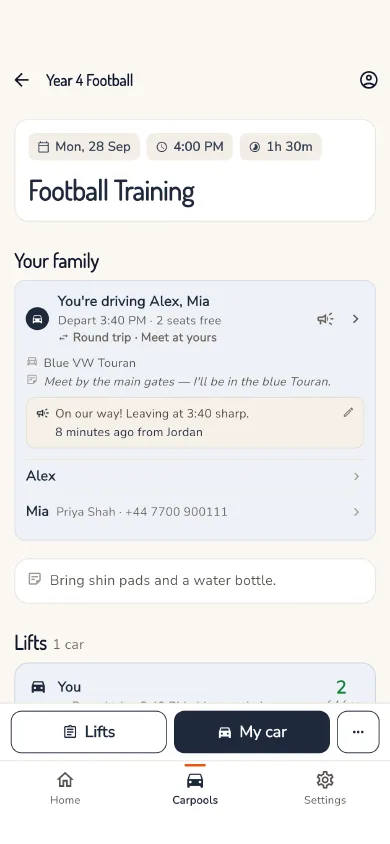
Your children are automatically booked into your car. Other parents in the carpool can now see your car and book their children in, and you'll get a notification each time.
Pick one of your cars from the garage when you offer (set them up under Settings → Family & garage) so kids know which vehicle to look for at pickup. On the day, tap the megaphone on your lift status card to send the families a quick update: "On my way", "Running a few minutes late", "I've arrived", to their parents, the kids, or both, and optionally share where you're parked so they get a one-tap "Navigate to the car" link after the event.
Book a lift
Find a seat for your child
Bookings are confirmed seats, not chat promises. Once you've booked, the driver has your child on their passenger list and you both know the plan is set.
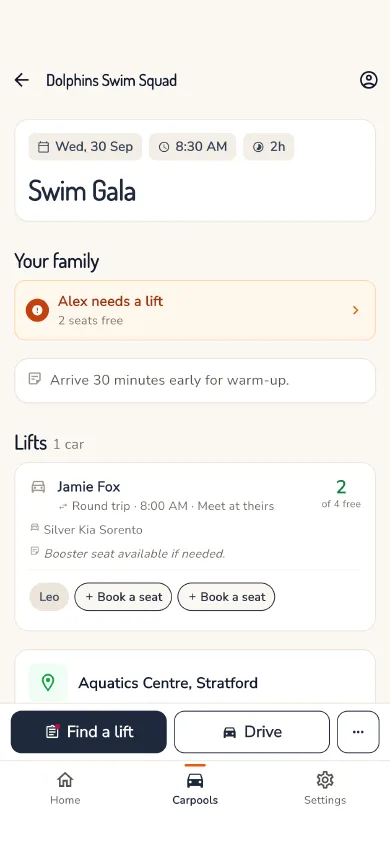
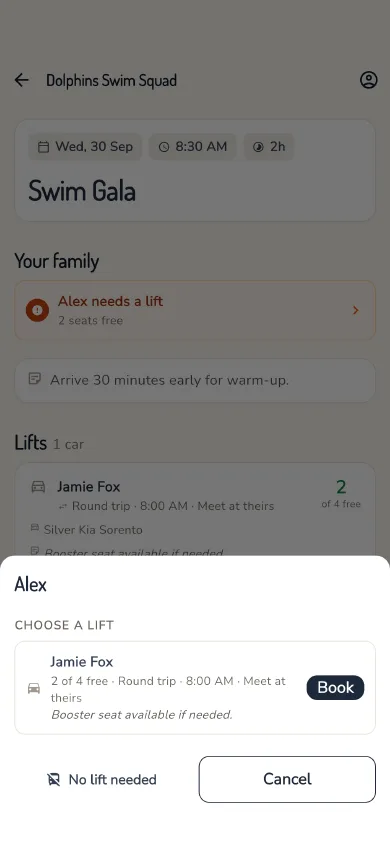
Tap "Find a lift" on the event, or your child's lift status card, to see available cars. Each car shows the driver, available seats, pickup time and direction and, if the driver has set one, the vehicle to look out for.
Tap a car to book your child in. Need different drivers for "to" and "from"? Book each leg separately. The app tracks both, and warns you if a leg is missing.
When plans change
Cancellations, swaps and last-minute changes
Can't drive any more? Tap your lift status card and choose "Stop driving". All affected parents are notified, with your reason if you give one. Another parent can then step up.
Take over a car: Tap "Drive" on the event and choose "Take over a car". The new driver takes over the car with all passengers intact, and every booked family is notified.
View history: Every change is logged. Tap "History" in the event menu to see who did what, and when.
Ready to get started?
Set up in a few minutes. Free for 90 days, no card needed, then £9.99 a year or £0.99 a month.